Force Matching SSD IDs to Registrations
For most students with approved accommodations in SSD Online, their registration in SDMS will appear automatically matched with their accommodations. You will be able to see their SSD ID number and approved accommodations in the SDMS roster and student profile.
In some cases, records may have differences that do not permit the system to automatically match registration and accommodation data. For example, if the student's name in SSD Online is different from the name provided in the student's test registration, SDMS would require authorized staff to verify these two records belong to the same individual. This verification is called force matching.
To force match SSD IDs in SDMS, you must know the student's SSD ID number, which is available in SSD Online. If you or the student don't know their SSD ID number, contact the SSD office at cb.org/ssdform.
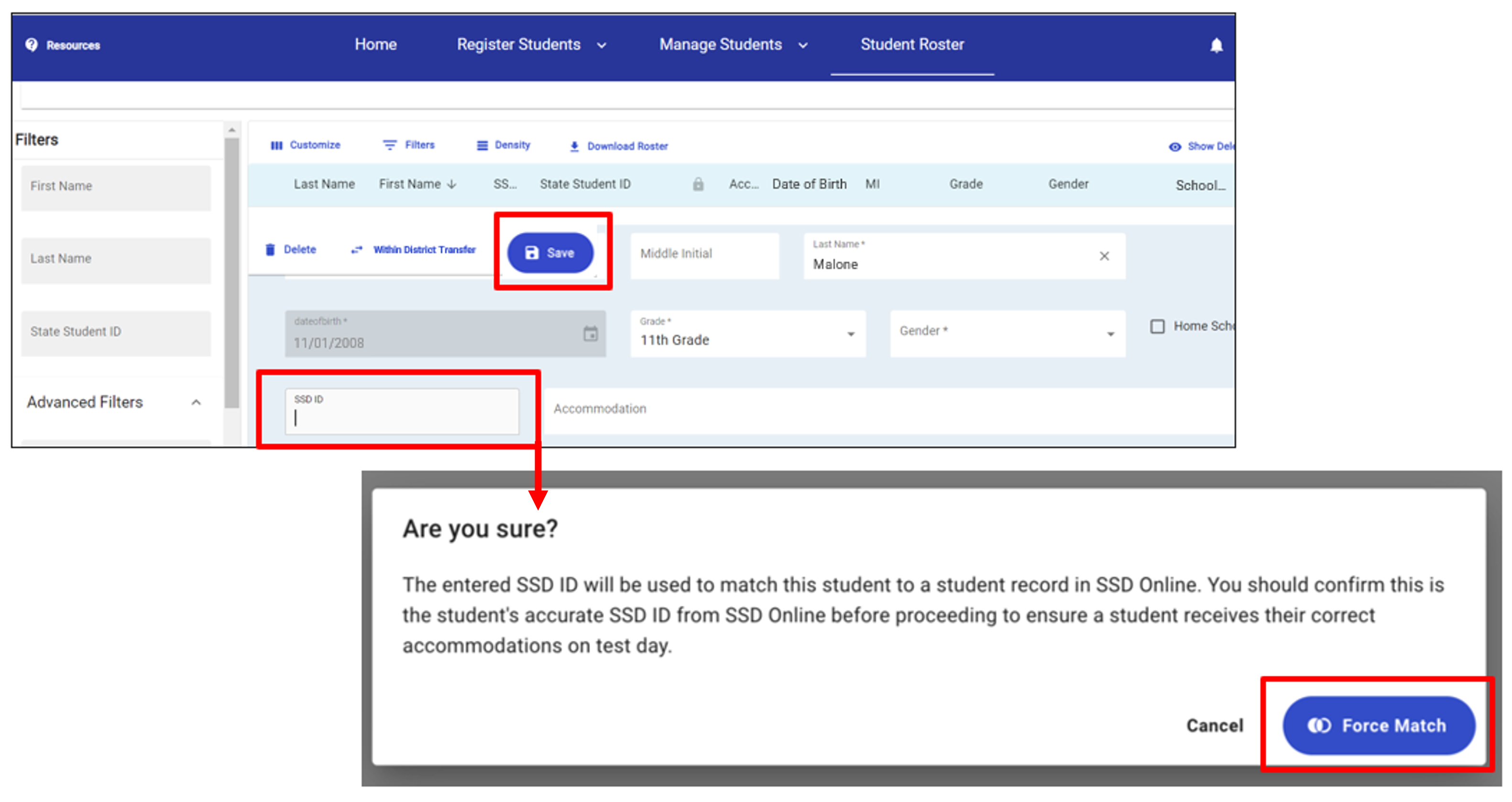
To find a student's record in SDMS, use the filters on the left or scroll through the alphabetical roster. Click the + sign to expand the student record and scroll to the Testing Information section. Then enter the student's SSD ID from SSD Online into the SSD ID field in the student's detailed record.
After the SSD ID is entered, the save button will turn blue. Click the blue Save button. In the pop-up that appears, confirm that the SSD ID number you have entered for this student is accurate and click the blue Force Match button.