Transferring Registrations Between or Within Districts
If a student in your state transfers to a new school in the same district, you can use the Within District Transfer tool in the Manage Students menu.
If a student in your state transfers to a new school in a different district, you can use the Between District Transfer tool in the Manage Students menu.
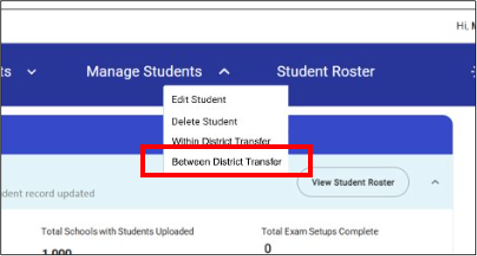
District assessment coordinators (DACs) have full permissions for between-district transfers. School test coordinators can view all between-district transfer requests and designate students for release so they can be picked up by another district. School SSD coordinators can only view all between-district transfer requests.
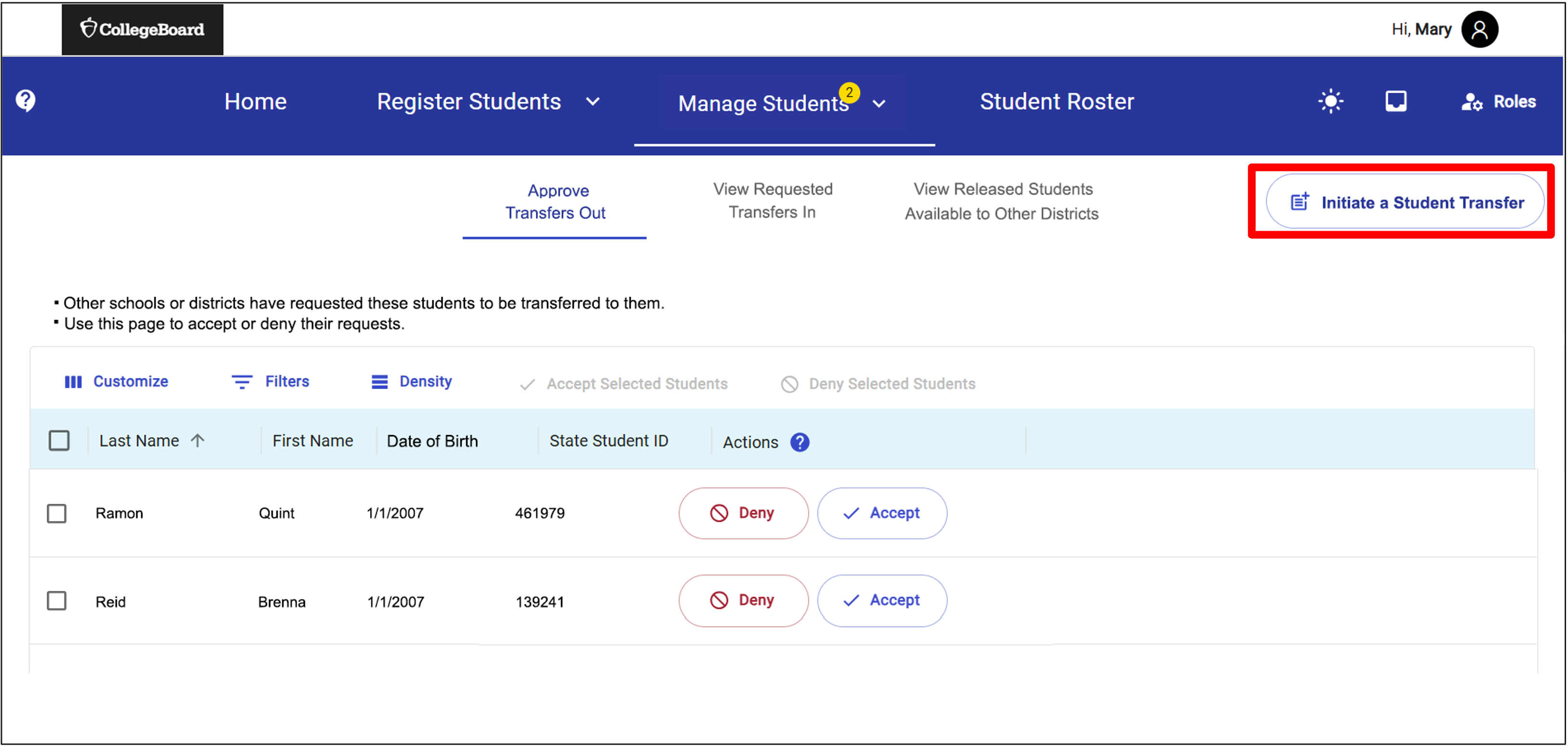
After choosing the Between District Transfer option, DACs, school test coordinators, and SSD coordinators will see three tabs:
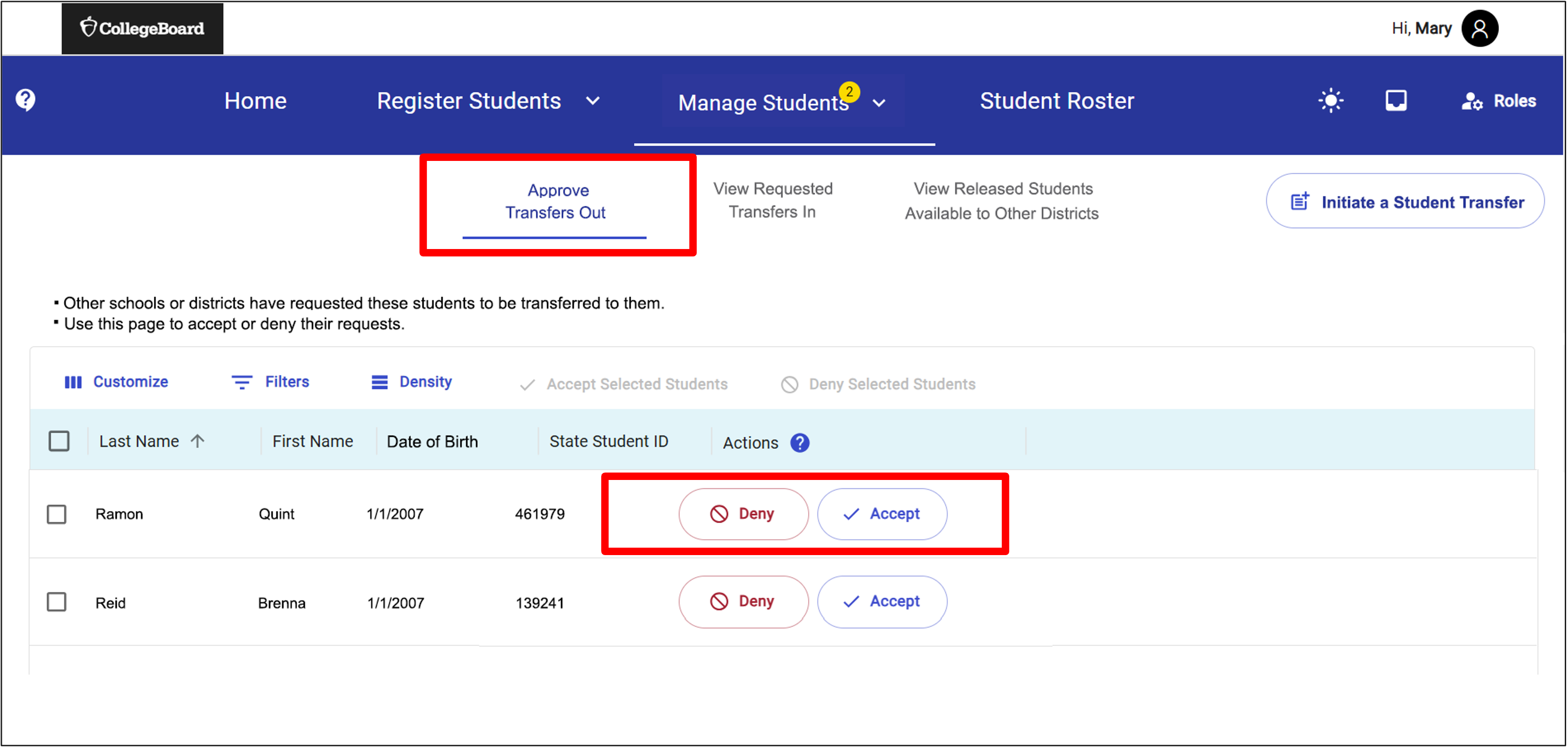
- Approve Transfers Out: Users (DACs only) will see students that have been requested by other districts.
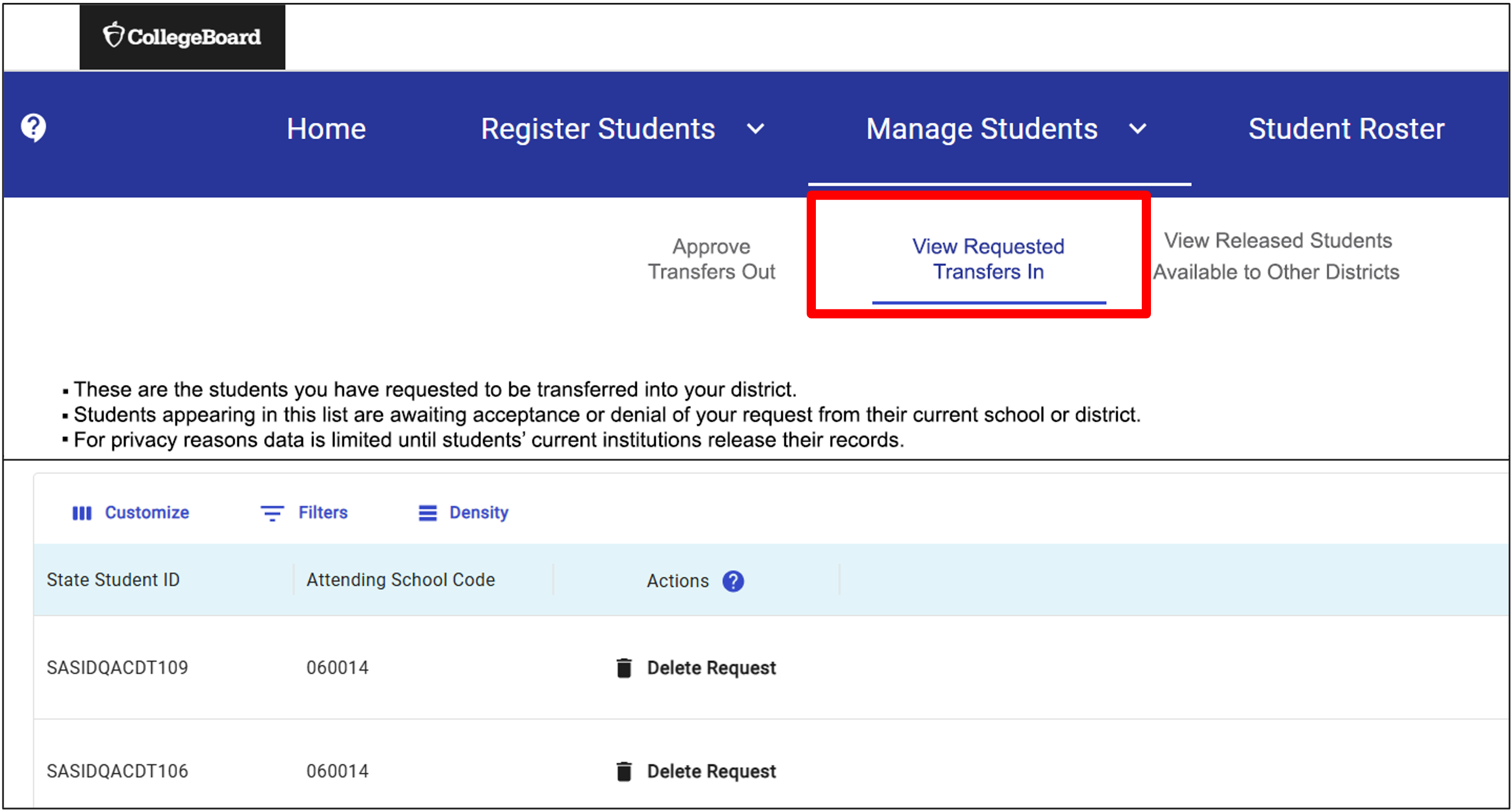
- View Requested Transfers In: Users will see students they have requested from other districts.
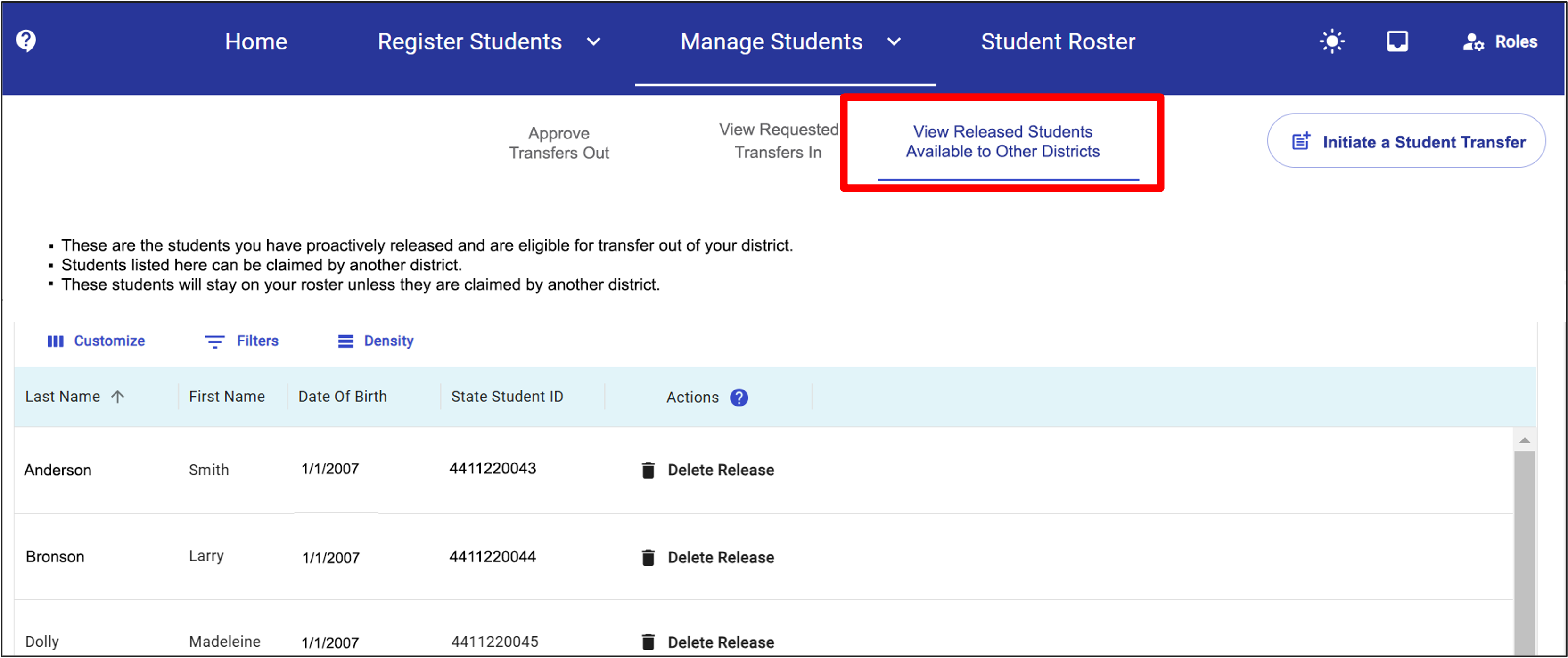
- View Released Students Available to Other Districts: Users can see students that they have proactively marked as available to be requested by other districts.
NOTE: If there are pending requests, a yellow notification bubble will appear above the Manage Students tab.

In the Approve Transfers Out tab, DACs can deny or accept another district's request to claim a student. If a DAC clicks Accept, a message appears prompting them to confirm their choice. They then click Accept Request, and the student record is automatically removed from the user's district roster and is added to the new district's roster. If a DAC clicks Deny, a message appears prompting them to confirm their choice. They then click Deny Request, and the user's student record remains in their district roster and is not added to the roster of the new district.
In the View Requested Transfers In tab, users can view the list of students they have requested from other districts. The students on this list are awaiting approval from a user in the other district. Requested students drop off this list once a request is accepted or denied. Only DACs can delete the request if the student does not need to be transferred. They do this by clicking the Delete Request button. They then click the Yes, Delete Request button to confirm the deletion.
The View Released Students Available to Other Districts tab provides a list of students the user has proactively released from their district. When another district claims a released student, the student no longer appears on this list and is no longer part of the user's district in SDMS. A user can delete releases before students are claimed by another district. They do this by clicking the Delete Release button next to the student and then by clicking the blue Yes, Delete Release button in the confirmation message.
Initiating a Student Transfer
To request a student from another district, DACs click the Initiate a Student Transfer button. The DAC enters the student's State Student ID and the school's Attending Institution Code for the school in their district into which they would like to transfer the student. The user confirms the request by clicking on the Submit Request button. The district where the student is currently registered is then notified of the transfer request.
Releasing a Student
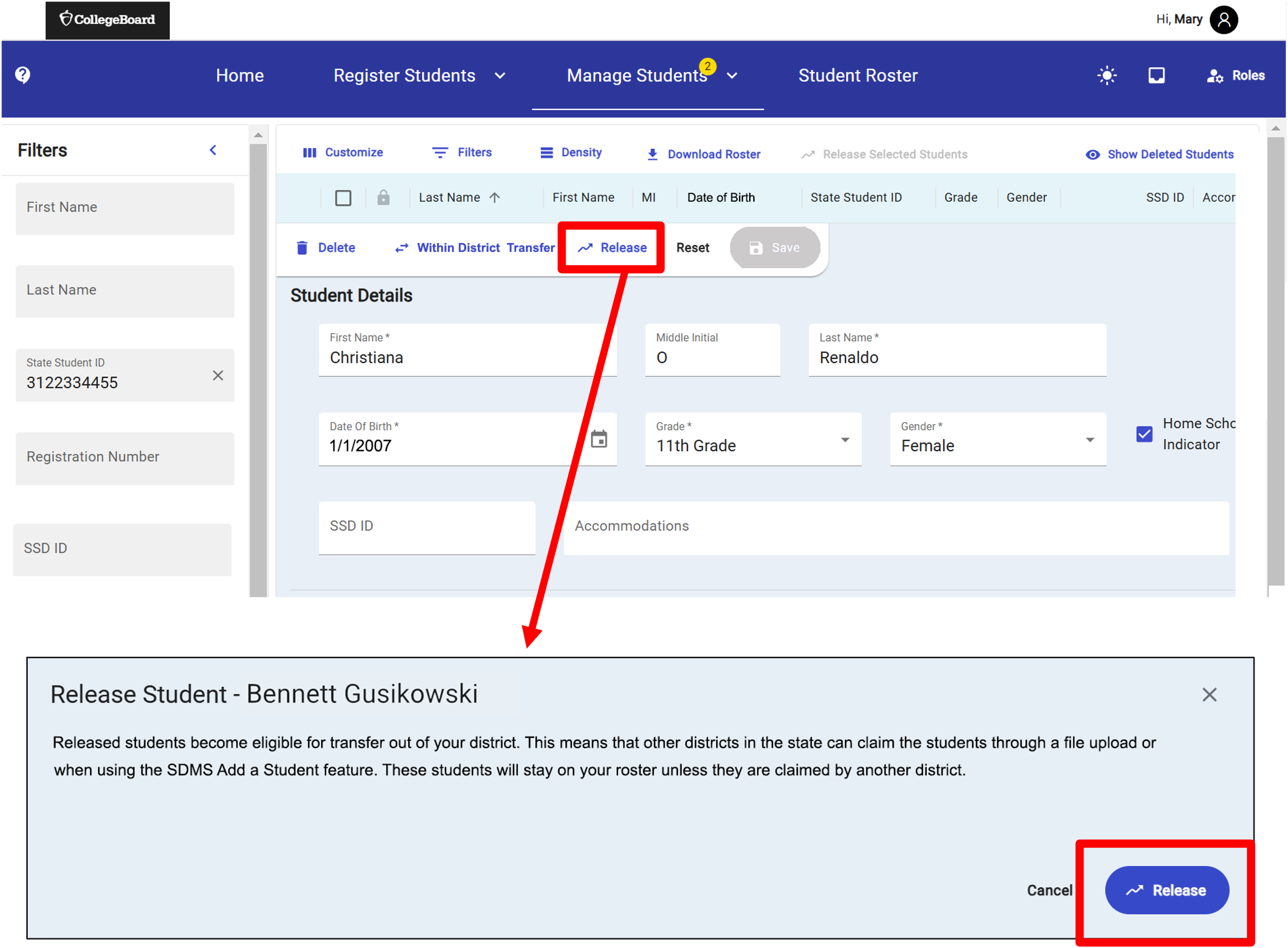
To release a student, the DAC or school test coordinator must first locate a student record by selecting Edit Student in the Manage Students menu or through the Student Roster. They click the Release button located near the top of the student record and confirm the release by clicking the Release button again in the confirmation prompt.
NOTE: Using the release feature makes the student eligible for transfer out of the user's district. The student can still be found in the user's roster until another district claims them.
Between District Transfers and Student File Uploads
If a student is included in a bulk upload file and isn't already part of that district, SDMS will check to see if the student has a Released status in another school in the state. If they do, the student is pulled into the uploading district automatically.
If the student in the bulk upload file isn't already part of the district but doesn't have Released status, SDMS will automatically initiate a Between District Transfer request to the student's current school/district.